Recipes, 6 min read
How to get the recipe from a YouTube video (without rewatching it)
How to get the recipe from a YouTube video or Short: check the description, creator site, pinned comment and transcript, or turn the link into a recipe.
To get the recipe from a YouTube video, start with the description: tap it to expand the full text, because most cooking channels paste the recipe there or link to it on their website. If it isn't in the description, check the pinned comment, then open the transcript and read the quantities instead of rewatching. Or skip all of that and share the link to a recipe app that reads the video's text and hands you back an ingredient list and steps.
YouTube is the opposite problem from TikTok. A TikTok recipe is 40 seconds and the quantities are a blur. A YouTube recipe is 22 minutes, the quantities are in there somewhere, and the onion goes in at 14:37 after a story about the creator's grandmother and a sponsor read for a VPN.
Here's how to find it, cheapest method first.
1. Expand the description
Under the video title there's a short preview of the description. Tap it (or "...more" / "Show more", depending on where you're watching) to open the whole thing. This is where the recipe lives more often than not.
What you're looking for:
- The full ingredient list. Plenty of creators paste it straight in, sometimes with metric and US measurements side by side.
- A link to the creator's website. Bigger channels usually post the written recipe on their own site and link it near the top. That page will have exact quantities, and often notes the video skipped.
- Chapters. If the description has timestamps ("4:12 Making the sauce"), you can jump straight to the step you need instead of scrubbing.
People skip this constantly and go straight to transcribing the video by ear. Don't be those people. Check the description first.
2. Check the pinned comment
If the description is all affiliate links and merch, scroll to the comments. Creators often pin the recipe as the top comment, or pin a correction ("it's 1 tsp of salt, not 1 tbsp, sorry"). The pinned comment is worth reading even when the description has the recipe, for exactly that reason.
Other viewers are useful too. Someone has almost always already asked "how much butter?" and someone else has almost always answered.
3. Open the transcript
This is the one most people don't know about. On many videos, if you expand the description and scroll to the bottom, there's a "Show transcript" button. It opens the full spoken text of the video, with timestamps, in a panel you can scroll and read.
For recipes that are only narrated ("we're going in with about two tablespoons of miso"), this is the whole game. You can read ten minutes of video in about a minute, and tapping a line jumps the video to that moment if you need to see what "until it looks like this" looks like.
A few honest limits:
- Not every video has a transcript, and auto-generated ones mishear things. "Fish sauce" and "fresh sauce" are not the same ingredient.
- Transcripts capture what was said, not what was shown. Quantities that only appear as on-screen text won't be in there. Pause and screenshot those frames.
- On Shorts there's usually less to work with: a short description, no chapters, and often no transcript. Check the description and comments, then fall back to screenshots.
4. Turn it into text you'll keep
Once you've found the recipe, you still have to put it somewhere. You can copy the description or transcript into a notes app and tidy it up by hand: delete the "smash that subscribe button," split ingredients from steps, fix "fresh sauce." That works, and it's free. It takes a few minutes per recipe, and your notes app still can't scale servings or build a shopping list.
5. Or share the link and let the app do steps 1 to 4
CookinBuddy does the digging for you. It reads the YouTube video's description, transcript and comments, and builds a structured recipe from them: an ingredient list, numbered steps, and servings you can scale up or down.
How to do it on iPhone:
- In the YouTube app, tap Share under the video (or on the Short).
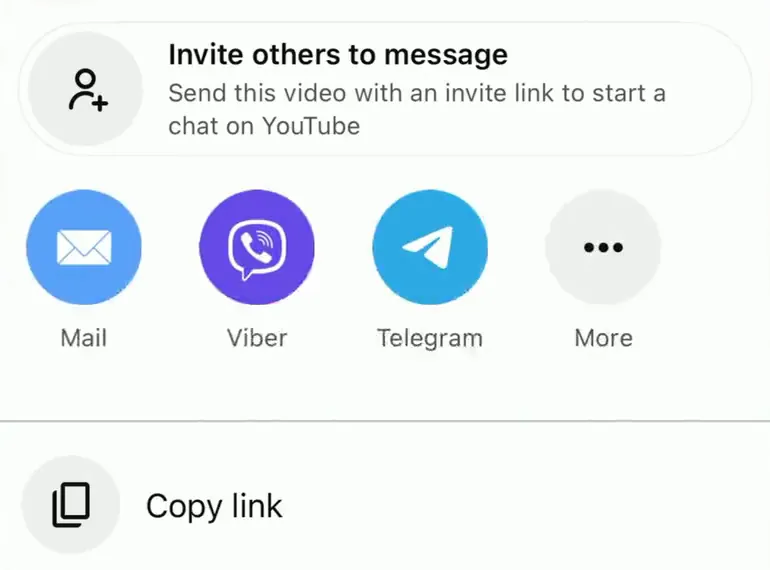
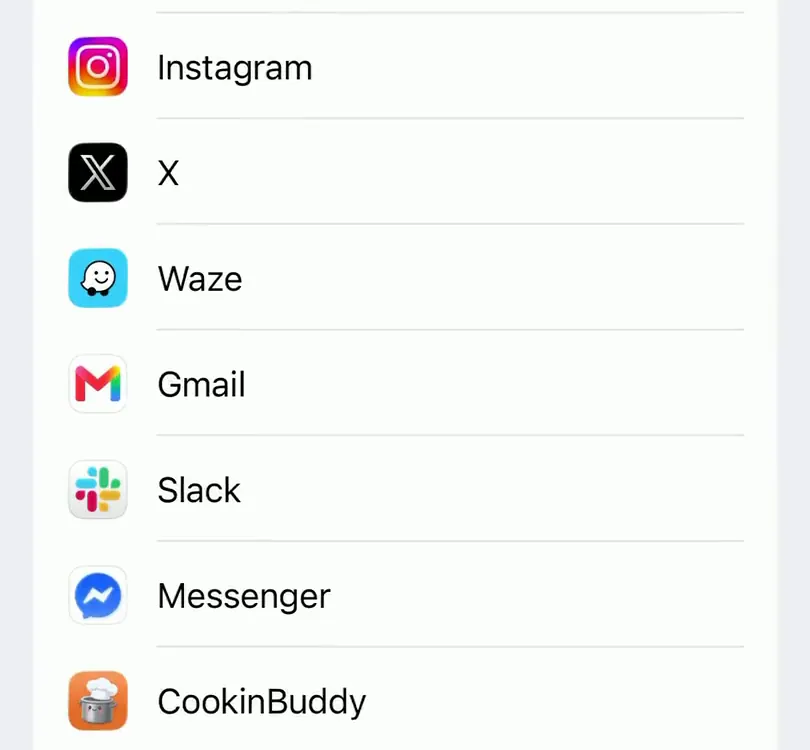
- Pick CookinBuddy from the share sheet. If you don't see it, tap "More" and add it.
- The recipe lands in your library with the ingredients already separated out.
Or copy the link and paste it into CookinBuddy. Regular videos and Shorts links both work.
Because the app pulls from all three sources, it catches the quantity that's only in the narration and the correction that's only in the pinned comment. It's still worth a quick look at the result before you cook, the same way you'd sanity-check a recipe you copied by hand, especially if the creator was cooking on vibes.
What you get once it's text
Getting the recipe out of the video is the first half. The useful half is what you can do once it's text instead of a 22-minute file:
- Shop from it. Pick a few recipes for the week and the ingredients merge into one grocery list, sorted by aisle, that you can share with whoever's doing the shopping. It updates in real time, so nobody buys the milk twice.
- Scale it. The creator cooked for four. You're cooking for two, or for eight. Change the servings and the quantities follow.
- Cook without the video. Step-by-step cook mode walks you through it hands-free, with timers, so you're not dragging a greasy finger across a progress bar. More on that here.
- Find it again. It sits next to everything else you've saved, not in a "Watch later" playlist with 300 other videos. If your saves are already a mess, here's how to organize recipes so they stay findable.
A few things worth knowing
- Credit the creator. Saving a recipe for your own kitchen is fine. If they have a website with the written recipe, visit it; that page view is how a lot of food creators get paid.
- Some videos don't really contain a recipe. If the description is empty, nobody says a quantity out loud, and nothing appears on screen, there's no recipe to extract. You've saved inspiration. That's allowed.
- Watch it once anyway. The video is genuinely good at showing technique: how thick the batter should be, what "golden" means. Watch it once for that. You just shouldn't have to watch it five times for the amount of flour.
The short version
Description first, then creator's website, then pinned comment, then transcript. That finds the recipe in most YouTube videos for free. If you'd rather skip the detective work, share the link to CookinBuddy and get the ingredients and steps back as a recipe you can shop and cook from.
It's a free download on iPhone, and new users get enough coins to import a couple of recipes before deciding anything. After that it's coins (10 for $1) or Max at $5.99 a month or $39.99 a year, with a 14-day free trial. If your saves are spread across apps, the TikTok guide covers the short-video side. Try CookinBuddy.
Other questions
- How do I get the recipe from a YouTube video?
- Open the description and tap to expand it, since many creators paste the full recipe or link to it there. If it isn't there, check the pinned comment and the video's transcript, or share the link to a recipe app that turns the video into an ingredient list and steps.
- Can I convert a YouTube video into a written recipe?
- Yes. You can copy the transcript from the description panel and tidy it up yourself, or paste the link into a recipe app like CookinBuddy, which reads the description, transcript and comments and builds a structured recipe from them.
- How do I save a recipe from a YouTube Short?
- Shorts rarely have room for a full recipe, so check the Short's description and comments first. If the quantities are only spoken or shown on screen, sharing the Shorts link to a recipe app is the quickest way to get them as text.
- Is there an app that saves recipes from YouTube?
- CookinBuddy imports recipes from YouTube videos and Shorts, along with TikTok, Instagram, Facebook, websites and photos. It is a free download for iPhone, and new users get enough coins for a couple of imports.
- Does CookinBuddy work on Android?
- No, CookinBuddy is iPhone only for now.